
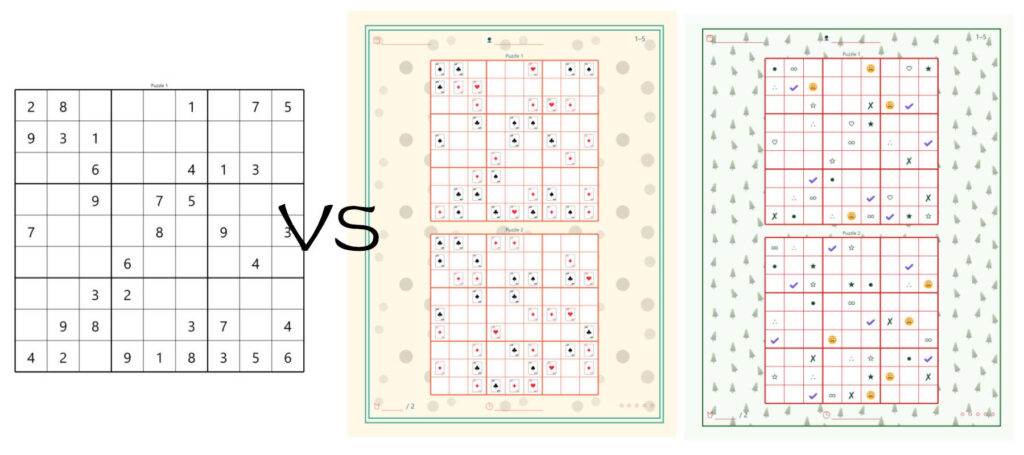
How to Create a Custom Print-Ready Sudoku Book
Introduction
Most "Sudoku generators" give you the same thing: digits in a grid, maybe a difficulty slider, and a printable page. Fine for a one-off worksheet — weak if you want a book people buy, gift, or brand as yours.
Puzzle Architect is different. It is a book architect for puzzles: you personalize the symbols (including your own images), dress the pages with themes and topic decoration, assemble real front matter and answer keys, then export a complete print-ready PDF at 300 DPI. Premium users can also export SVG and PNG for further editing or high-res printing.
This guide shows how to build a custom Sudoku book from a blank project to a finished export — and why the personalization features are what separate a forgettable generator dump from a product you can publish.
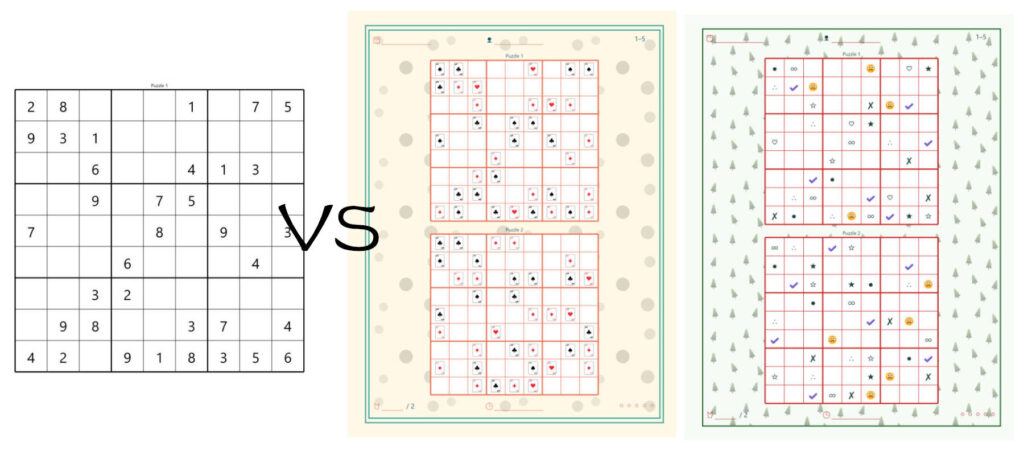
Why this beats a normal Sudoku generator
1. Personalization with your own images
Point Sudoku at a folder of your PNG/SVG icons — pet photos turned into icons, classroom stickers, brand mascots, wedding motifs, emoji packs. The app uses them as the puzzle symbols instead of 1–9. That is the leap from "another Sudoku PDF" to "this book could only come from you."
Icon mode: Fixed (same icon set for the whole book) or New each puzzle (fresh pick per grid when your folder has extras) so longer books stay visually alive.
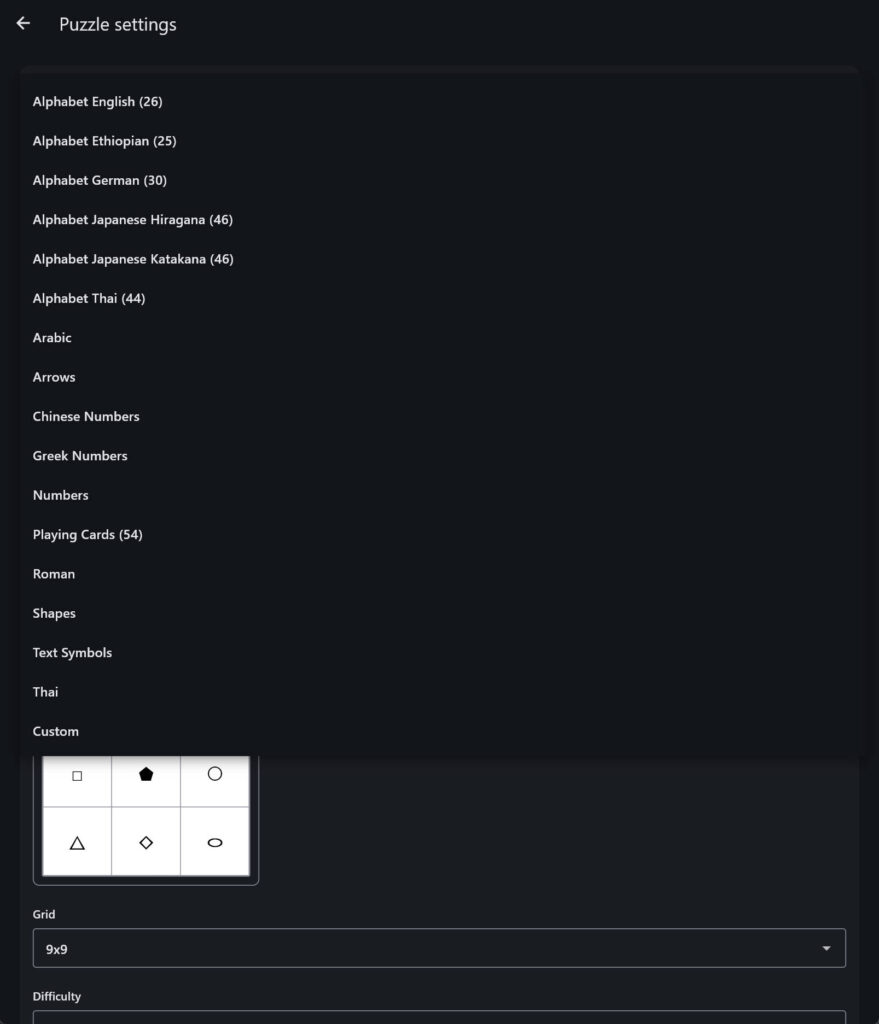
2. Many built-in symbol sets — not only digits
Switch the Symbols dropdown and instantly re-skin the same Sudoku engine:
- Numbers (classic)
- Chinese Numbers, Roman, Thai, Arabic, Greek Numbers
- Shapes, Arrows, Text Symbols
- Playing Cards (icon-backed)
- Alphabet sets: English, German, Ethiopian, Japanese Katakana, Japanese Hiragana, Thai
Plus Custom for your own icon folder. One project settings change → a kids alphabet Sudoku, a travel/language edition, a cards-themed gift book, or a high-contrast shape Sudoku — without rebuilding puzzles by hand.
3. Full book, not a stack of loose pages
Title page, optional TOC, "belongs to" write-in, instructions in the book language, puzzle pages, solutions cover, paired answer keys, and author/contact — toggled as one project. Generators usually stop at the grid; publishers still need InDesign/Word after that. Puzzle Architect skips that second job.
4. Look & feel you control
Topic packs (backgrounds, decorative frames, gap icons) + color themes (or a custom brand palette) so the interior matches your cover niche: Halloween, Farm, Sports, Valentine's, Ocean, Forest, and more. Monochrome mode for classic KDP interiors; color when you want pop.
5. Layout that matches the trim size
Page-size-aware presets (Letter, KDP 6×9, A4…): one large puzzle per page for readability, or multiple per sheet for worksheet packs. Headers/footers (page number, name line, score, copyright) for classroom or branded sheets. Square cells kept for proper Sudoku proportions.
6. Ready for real publishing workflows
300 DPI PDF for print/KDP; Premium adds SVG/PNG. Export folders named by title + book language so the same book can ship in multiple languages without overwriting. In-app PDF preview before you upload. Mix Sudoku with 20 other puzzle types later if you grow into variety books.
What will you create?
- A title page with your book name
- Optional table of contents, "belongs to" page, and puzzle instructions
- Multiple Sudoku puzzle pages (classic 9×9 or kid-friendly 4×4)
- Digits — or any of the built-in symbol sets — or your own custom images as symbols
- Matching answer-key (solutions) pages that use the same symbols
- Optional contact / about-the-author page
- Decorative topic pack (backgrounds, frames) and a color theme
- Export folder with PDF (and SVG/PNG on Premium)
Before you start
- Install Puzzle Architect on Windows, macOS, iOS, or Android.
- Open the app and glance at the dashboard. A sample book may already be installed — open it once if you want to see a finished project before building your own.
- Decide your target:
- Home / classroom printouts → Letter (free) or A4
- Amazon KDP paperback → KDP 6×9 (Premium page size)
- Pick a simple first concept, for example: "Easy Sudoku for Adults — 50 puzzles" or "Kids Symbol Sudoku — Animals"
Step 1 - Create a new project
- On the dashboard, tap the + button to create a new project.
- The project editor opens with seven tabs across the top: Book · Author · Topic · Theme · Content · Layout · Book content
- Projects auto-save locally as you work. You can leave and come back anytime.
Step 2 — Book tab: title, size, language, and color mode
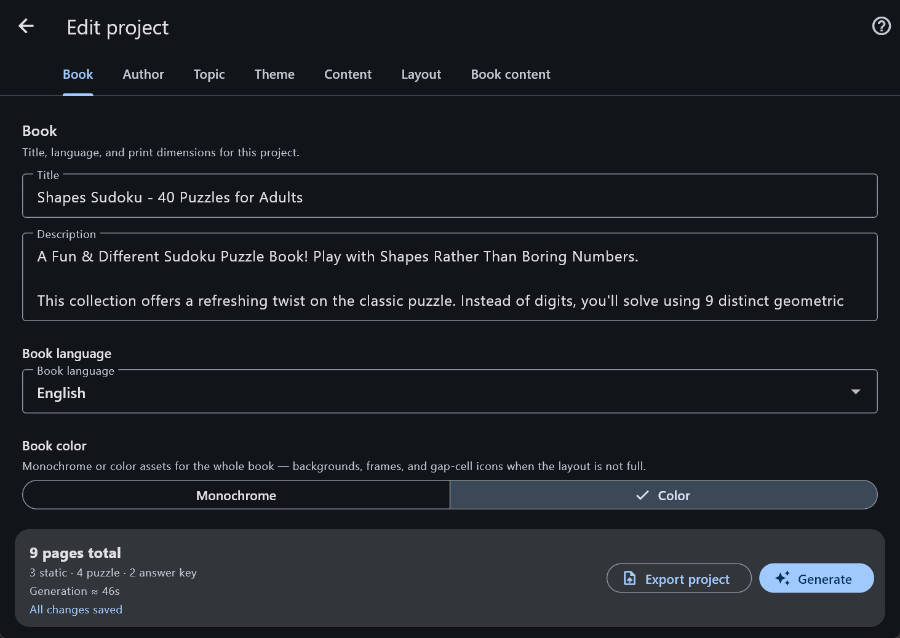
Open the Book tab and set the fundamentals.
Recommended settings for a first Sudoku book:
- Title: e.g. "Coastal Sudoku — 40 Medium Puzzles"
- Description / copyright: short blurb and your copyright line
- Book language: English (or German, etc.) — this drives instructions and page labels
- Page size: Letter (free) for practice; KDP 6×9 or A4 when you are ready to publish
- Orientation: Portrait (standard for Sudoku books)
- Book color: Monochrome for classic black-and-white interiors, or Color if you want themed backgrounds and colored themes
- Inner margin (mm): keep comfortable margins for binding / KDP bleed rules you follow
Also on the Book tab you can edit book-page headings and labels in the book language (title wording, solutions heading, and similar strings). Clear a field if you want that line omitted on export.
Step 3 — Author tab: your identity for the contact page
Open the Author tab and fill in:
- First and last name
- Optional nationality, website, and short bio
This profile is global — it is reused across projects and appears on the Contact / about-author page when that page is enabled. Ideal for KDP creators who want a consistent brand signature in every book.
Step 4 — Topic tab: decoration (backgrounds and frames)
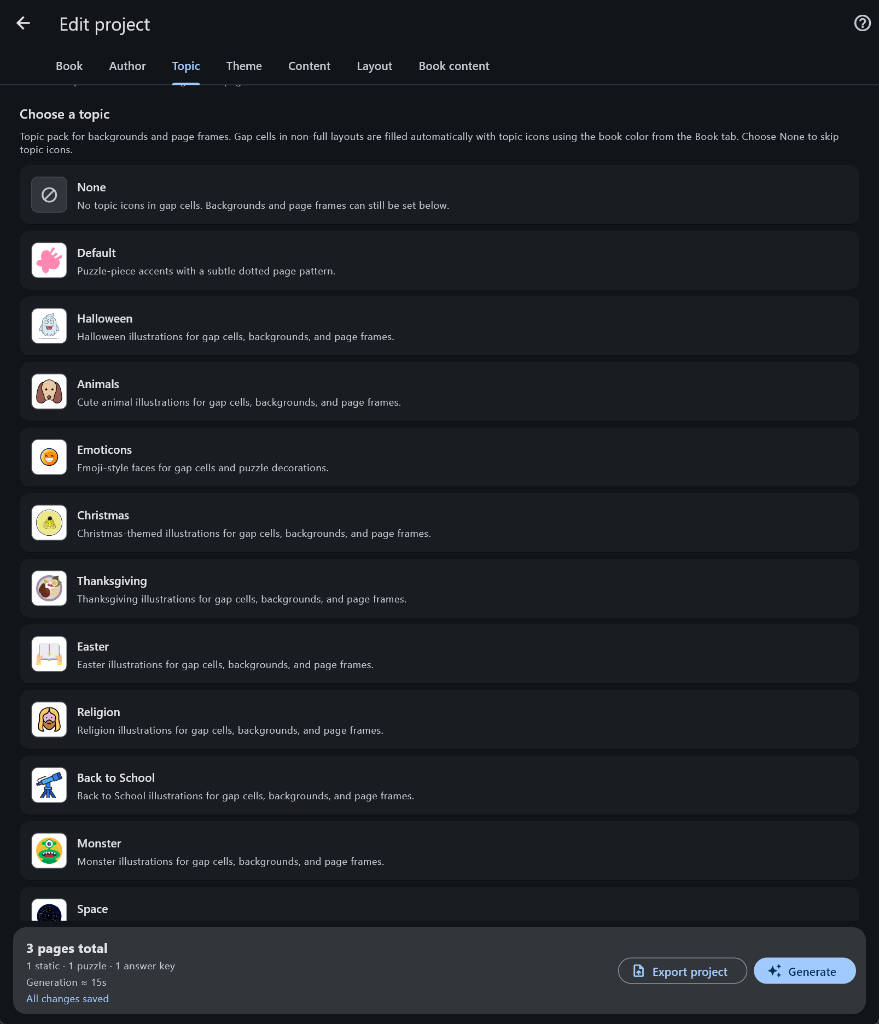
The Topic tab chooses a decoration pack — SVG assets used for tiled backgrounds, decorative page frames, and gap icons (when a layout is not a full grid).
For a classic Sudoku book:
- Topic: Default (clean) or Halloween / seasonal packs for themed releases
- Background: off or subtle tile at low opacity
- Page frame: none, simple line, or a decorative topic frame
For a kids or gift book:
- Try Animals, Emoticons, Farm, Games, Valentine's Day, Summer, etc. (Premium packs)
- Use monochrome gap icons if you want a coloring-page feel
Step 5 — Theme tab: colors and fonts
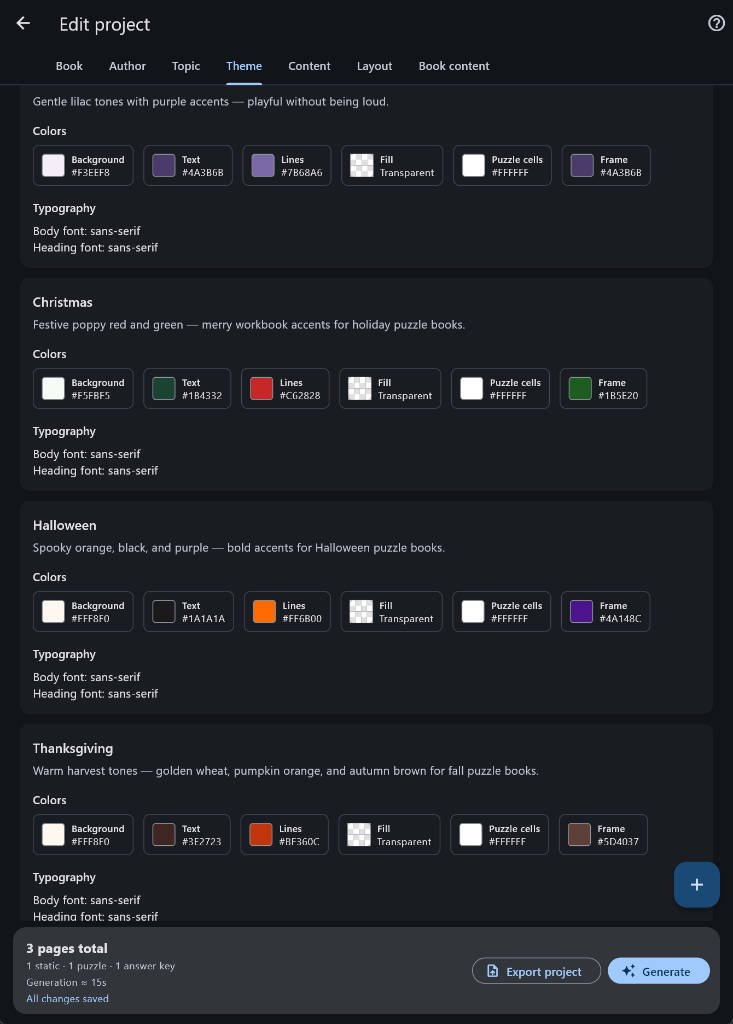
Themes control background, text, lines, fill, puzzle cell background, frame color, and fonts.
Suggestions:
- Classic print book → Basic (free, monochrome)
- Soft color interior → Ocean (free) or a Premium pack like Forest, Slate, Autumn, Sports
- High contrast novelty → White on Black (Premium)
- Matching seasonal brand → Christmas, Halloween, Valentine's Day, Summer, Farm, Games…
Premium users can also create a Custom theme with a color picker for full brand control. Themes are filtered by the book color mode you chose on the Book tab.
Step 6 — Content tab: add Sudoku and set how many pages
This is the heart of the book.
- Open the Content tab.
- Find Sudoku in the Logic category (preview icon helps you spot it quickly).
- Set the page count — how many Sudoku puzzle pages you want in the book.
- Tap into Sudoku settings to refine the puzzles.
Step 7 — Sudoku settings: difficulty, grid size, symbols, layout
In Puzzle settings for Sudoku, configure:
A) Puzzle options
- Grid: 9×9 (classic) or 4×4 (beginner / kids)
- Difficulty: Easy, Medium, or Hard
- Symbols: this is the standout control — see B and C below
- Allow duplicates: usually No for a serious book; Yes only if you knowingly want repeats when the unique pool is smaller than your page count
B) Built-in symbol sets (what most generators do not offer)
Open Symbols and pick a set. The same Sudoku logic stays; only the glyphs/icons change. Bundled sets include:
Numbers & scripts
- Numbers (default)
- Chinese Numbers, Roman, Thai, Arabic, Greek Numbers
Symbols & icons
- Shapes, Arrows, Text Symbols
- Playing Cards (drawn from the icon library)
Letters / alphabets (great for kids and language niches)
- Alphabet English, Alphabet German, Alphabet Ethiopian
- Alphabet Japanese Katakana, Alphabet Japanese Hiragana, Alphabet Thai
Use the on-screen preview to confirm the set looks right before you generate a full book. Tip: Alphabet and shape sets make "not just another digit Sudoku" listings on KDP much easier to differentiate in search thumbnails.
C) Custom symbols — your own images (the personalization killer feature)
This is where Puzzle Architect clearly leaves basic generators behind.
- Choose Custom under Symbols
- Pick a folder of PNG and/or SVG icons
- For 9×9 you need at least 9 icons; for 4×4 you need at least 4
- Preview the set in the settings screen
- Choose Icon mode:
- Fixed for all — one consistent set for the whole book (branded / gift books)
- New each puzzle — when the folder has more icons than required, each puzzle can get a freshly chosen set (keeps long books feeling varied)
Ideas that only work well with custom images:
- Family / wedding Sudoku with silhouette icons of the couple or pets
- Classroom reward book using the school mascot
- Brand / influencer merch book with logo marks as symbols
- Emoji or sticker-pack Sudoku for kids
- Seasonal packs you designed yourself (not only the built-in topic art)
D) Copy for the book language
- Edit the description and short instructions shown in the book language
- Puzzle options and solution options are grouped separately so the UI stays clear
- Solution pages automatically follow the same symbol set — solvers see matching answer keys
E) Layout (how many Sudokus per page)
Layout presets depend on page size and orientation from the Book tab. Examples:
- Letter portrait: often 2 puzzles stacked (2 rows × 1 column)
- Letter landscape: often 2 side by side
- KDP 6×9 / A4: often 1 large puzzle per page (great for readability and icon clarity)
Also set solution-page grid (e.g. 2×2 answers per solutions page on Letter). Keep square cells enabled for authentic Sudoku proportions. For custom icons, prefer fewer puzzles per page so each icon stays crisp in print.
Step 8 — Layout tab: headers and footers for every puzzle page
Open the Layout tab to place book-wide header and footer widgets (left / center / right slots), for example:
- Page number
- Book or chapter title
- Difficulty
- Copyright
- Date / name / rating lines (useful for classroom worksheets)
Grid density for Sudoku itself is set in Sudoku's puzzle settings (previous step) — the Layout tab is for repeating chrome around the puzzles.
Step 9 — Book content tab: front matter, solutions, contact
Toggle which structural pages appear in the exported book. Enabled pages are inserted in catalog order. A strong Sudoku book usually includes:
Enabled (recommended)
- Title — shows your book title
- Table of contents — auto-generated when useful
- Belongs to — "This book belongs to ___" write-in (great for gifts / kids)
- Puzzle instructions — how to play Sudoku in the book language
- Puzzles — required; generated from the Content tab
- Solutions cover — divider before answer keys
- Solutions — answer-key pages paired with puzzle pages
- Contact — author bio / website
Optional
- Chapter cover — more useful in multi-type mixed books; for Sudoku-only you may skip it
- Shuffle puzzle order — randomizes sequence (chapter covers turn off while shuffling)
You can open editors for TOC, contact, and chapter cover to tweak copy and theme-image options.
Step 10 - Check the status bar, then generate
Look at the project status bar before you export:
- Total page count
- Breakdown (static pages / puzzle pages / answer keys)
- Save state
- Estimated generation time
When ready:
- Tap Generate / Export.
- Choose formats:
- PDF — available to everyone
- SVG and PNG — Premium
- Free exports show a note that a SAMPLE watermark will appear on every page.
- Start export and watch the progress screen (phases, ETA, page outline).
Step 11 — Preview and open the export folder
When export finishes:
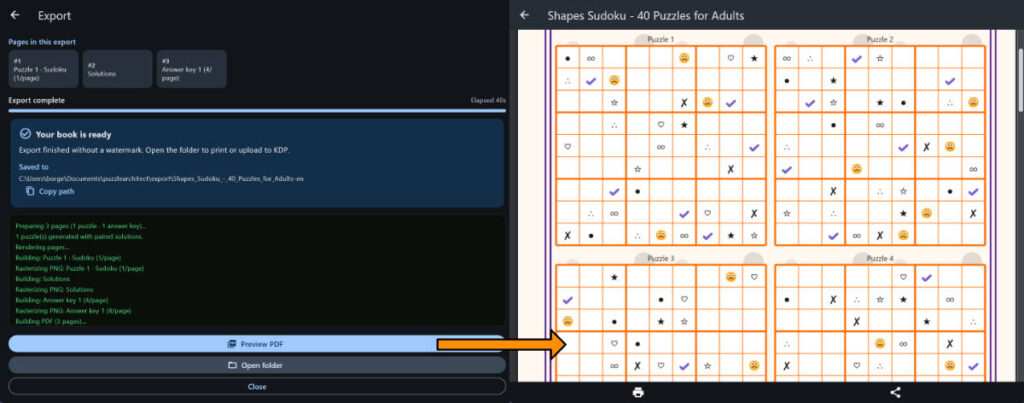
- Use Preview PDF inside the app to flip through the book.
- Open the export folder — files are saved under a folder named like: {BookTitle}-{bookLanguage} so the same project can be generated in multiple languages without overwriting.
- From the dashboard later, you can reopen the last exported PDF for that project.
What you get
- PDF — ready to print or upload (Premium: clean; Free: SAMPLE watermark)
- SVG — vector source pages (Premium)
- PNG — 300 DPI raster pages (Premium)
Publishing tips for Amazon KDP (and similar)
- Use Premium for watermark-free interiors before you upload.
- Match your interior trim size (e.g. KDP 6×9) to the cover template you build outside the app.
- Keep generous margins; Puzzle Architect's inner margin control helps, but always verify against KDP's current interior guidelines.
- Export once in English, then change book language and export again if you sell localized editions (folders are separated by language).
- For variety books later, mix Sudoku with mazes, word search, or math puzzles in the same project — Puzzle Architect supports 21 puzzle types with automatic chapter structure.
Ideas to make your Sudoku book stand out
Lean on personalization — this is what buyers notice in the "Look Inside" preview.
👶 Kids edition
4×4 grids + Alphabet English/German or Custom emoji icons + Belongs-to page
🌍 Language / travel edition
Thai, Arabic, Chinese, Japanese Hiragana/Katakana, or Greek sets
🃏 Cards & games night
Playing Cards symbols + Games topic pack
🎃 Seasonal edition
Halloween or Christmas topic pack + matching color theme (or Custom icons)
📚 Classroom pack
Letter size, headers with Name / Date / Score; Shapes or Arrows for variety
🔍 Large-print senior edition
KDP 6×9 or A4 with 1 puzzle per page (Numbers or high-contrast Shapes)
🎁 Brand / gift book
Custom theme colors + your own logo/mascot icons as Sudoku symbols + contact page
🌐 Multilingual catalog
Same project settings, switch book language, re-export (folders stay separate)
Free vs Premium (quick reference)
🆓 Free (trial)
- Try Sudoku and all other puzzle types — including symbol sets and Custom icons on a sample page
- Up to 1 page per puzzle type
- PDF export with SAMPLE watermark
- Letter page size; Basic & Ocean themes; Default & Halloween topics
⭐ Premium lifetime
- Unlimited puzzle pages (full-length personalized books)
- Clean PDF + SVG + PNG
- KDP 6×9 and A4 sizes
- Full theme and topic catalogs + custom themes
- Best path for real KDP / classroom / gift publishing
Ready to build a Sudoku book that actually looks like yours?
Download Puzzle Architect, open Sudoku settings, try a non-digit symbol set or your own icon folder, and generate your first personalized book today.
Upgrade to Premium when you need watermark-free pages and full-length books for publishing.